Loading…
Dead simple
How timeout. works
Physical friction beats software limits every time. Here’s the whole system for taking back your screen time.
How it works.
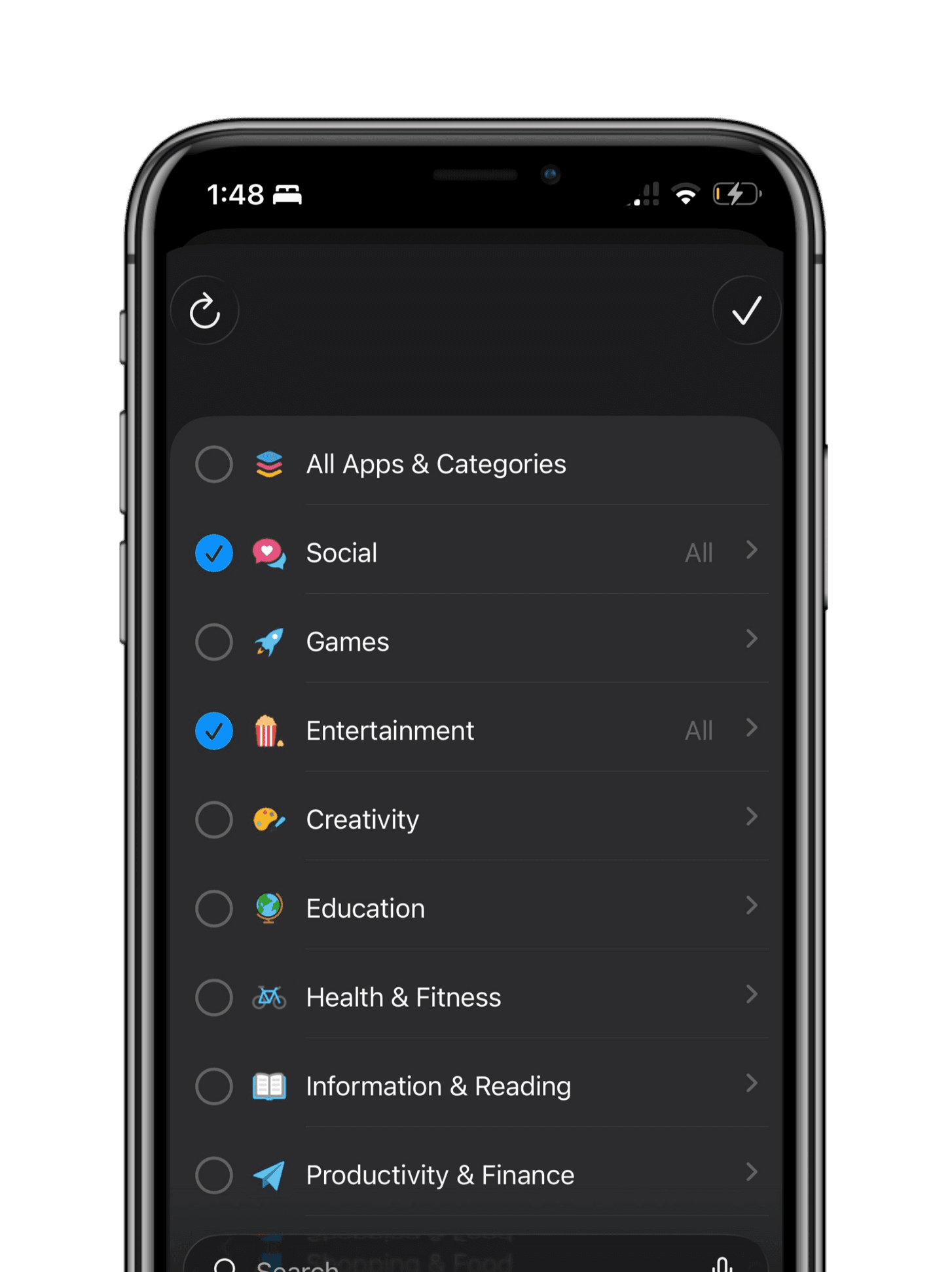
1. Choose Distractions.
Choose your distracting apps that you want to block in the timeout app.
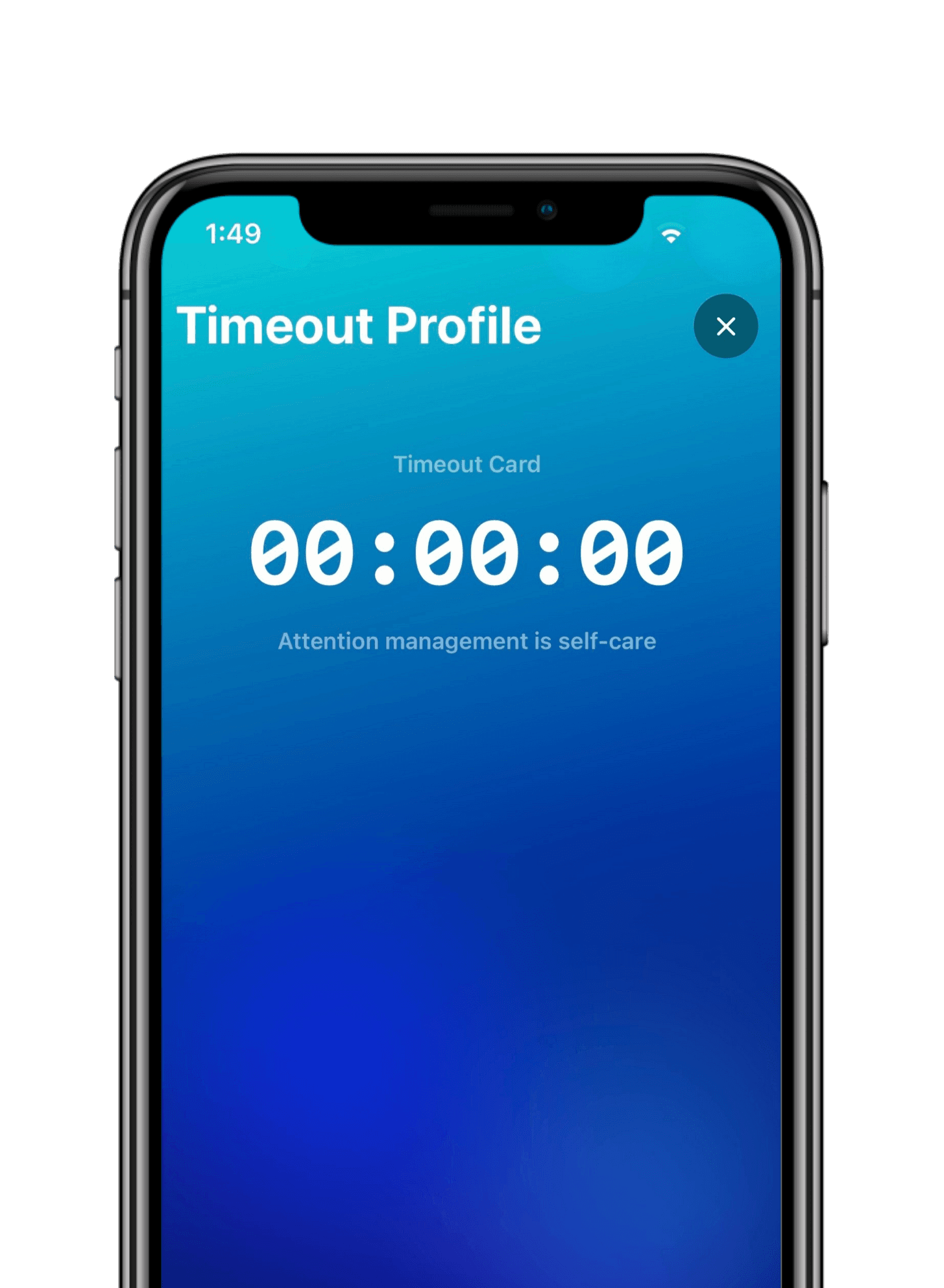
2. Start timeout.
Once setup, Tap phone on your card to activate timeout mode.
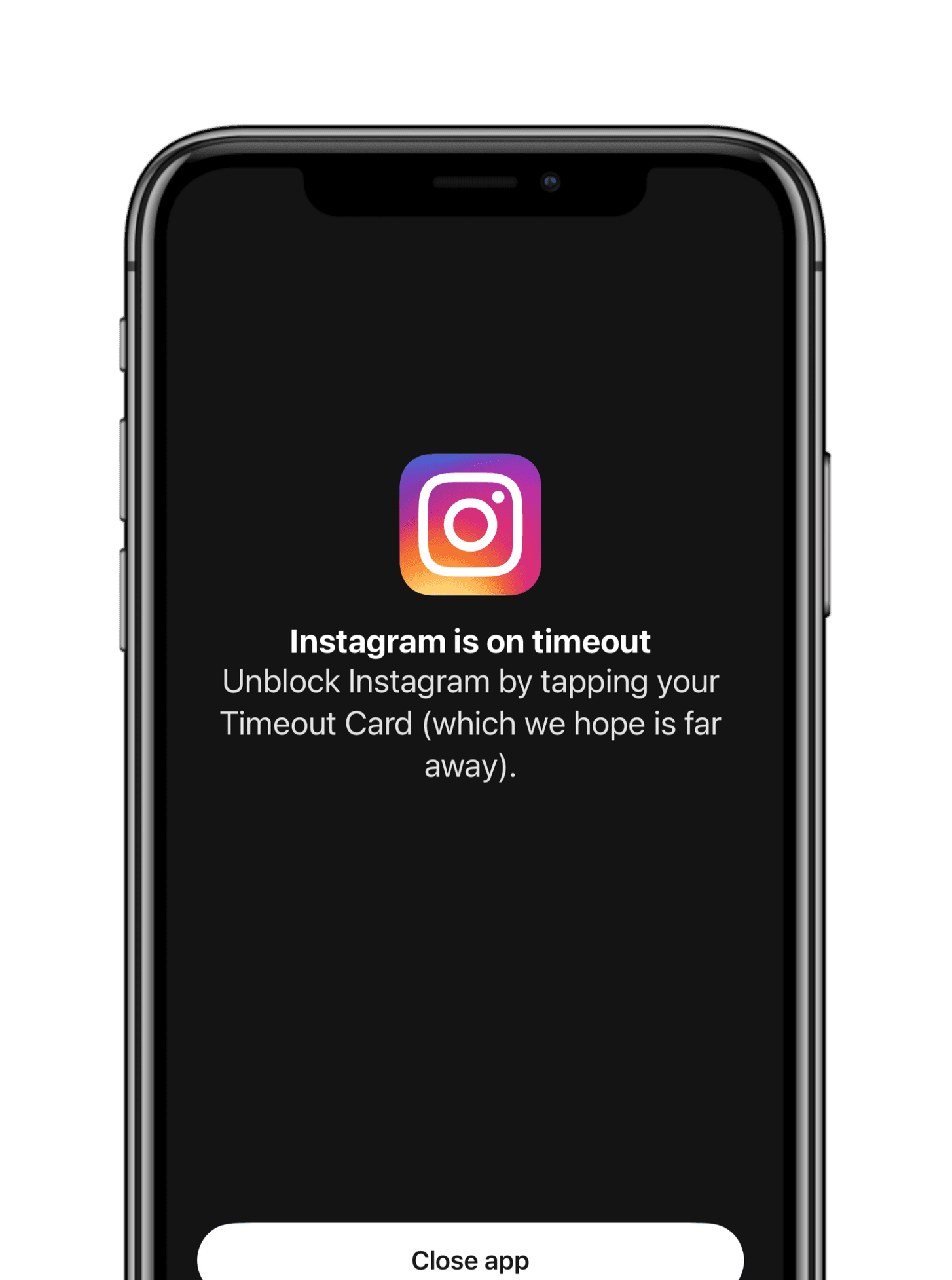
3. You are now free.
The apps become locked instantly. The only way to re-unlock is to manually tap your card again - no loopholes. So keep the card out of reach—like downstairs or in another room—and unlocking it becomes a conscious choice.
See it in action
Watch a 30-second demo
Watch the tap-to-lock moment and the unlock-by-card moment in under 30 seconds.
Why Other Methods Fail:
Apple Limits
Easy to click ignore.
Deleting Apps
Easy to re-download.
Grayscale
Easy to turn off.
timeout. adds real friction.
Modern apps are built to keep you scrolling, so we created a physical barrier. Set phone rules, and unlock them only with your Timeout Card—no other way. Timeout makes distractions inconvenient, helping you think before you scroll.